Learn · PSOrvia Player
Hearing the stereo image
You hear the same piece as mono, wide, too wide and with a phase error, and you learn what the Stereo view shows and why mono compatibility matters.
- Difficulty
- medium
- Duration
- approx. 10 minutes
- You need
- PSOrvia Player
Cheat sheet · All steps and values on one page, print-friendly.
The audio example at the end
This is what the final state sounds like. Below it you can download the file in lossless form.
The audio example at the end
Keyboard: Space plays or pauses, arrow keys jump 5 seconds, Home and End go to start and end.
In stereoTwo channels, one per ear. Differences between them create the impression of width and space., each ear gets its own channel. If both channels are the same, it is monoBoth ears hear the same signal. A piece that also sounds good in mono is mono-compatible.; the more different they are, the wider the sound seems. The correlationMeasures how similar the two stereo channels are: +1 identical, 0 independent, −1 opposing. Strongly negative values mean that parts cancel out in mono. measures this: +1 means identical channels, 0 independent ones and −1 opposing ones. The “Stereo” view shows the stereo image as a cloud of points and states the correlation. Here you hear the same piece in five states; all are about equally loud, so that only the stereo image makes the difference. In the player, the visualization shape “Light trail” shows the stereo image as a glowing beam: mono stands upright in it.
Headphones are ideal, because each ear gets exactly one channel. All audio examples are about equally loud.
Your progress
Only remembered in your browser, nothing is sent.
For comparison
Starting point: mono
Keyboard: Space plays or pauses, arrow keys jump 5 seconds, Home and End go to start and end.
-
Step 1: From mono to stereo
The starting point is the music as monoBoth ears hear the same signal. A piece that also sounds good in mono is mono-compatible.: both channels are the same, the point cloud is a vertical line, the correlationMeasures how similar the two stereo channels are: +1 identical, 0 independent, −1 opposing. Strongly negative values mean that parts cancel out in mono. is 1. In the first step a real stereoTwo channels, one per ear. Differences between them create the impression of width and space. image arises: the instruments stand in different places, and the cloud becomes wide. The correlation drops clearly below 1. In the player, open a piece on “Now playing” and press V: the “Light trail” shape shows you the stereo image of your piece.
In the player Open visualization (key) V Audio example
The sound has become wide. Piano and glockenspiel stand in different places, the bass stays in the center.
The “Stereo” view shows the point cloud from before and after with the correlation. With the crossfade slider you move the sound smoothly from mono to stereo.
Step 1: From mono to stereo
0:00Keyboard: Space plays or pauses, arrow keys jump 5 seconds, Home and End go to start and end.
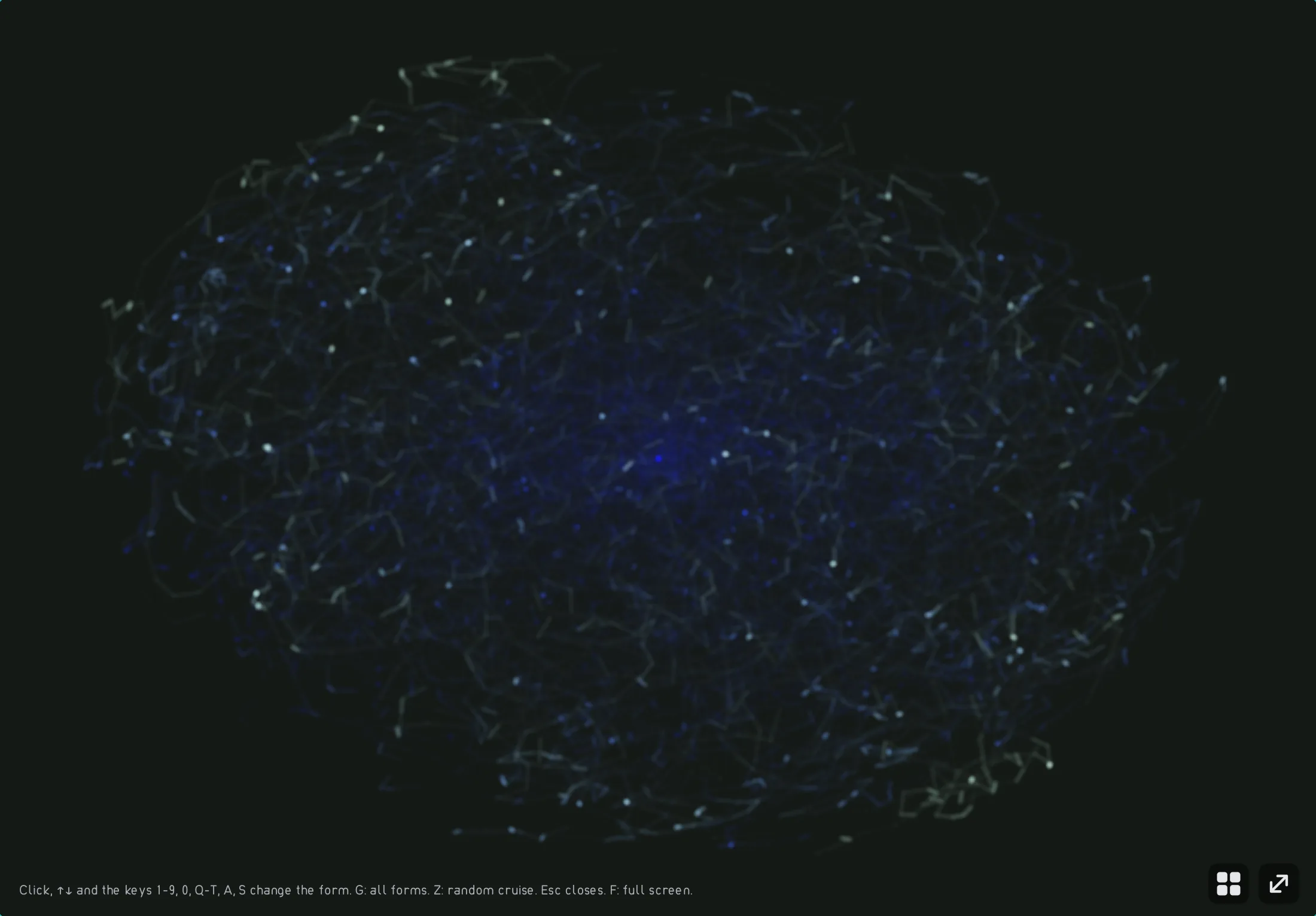
The “Light trail” shape shows the stereo image of the piece as a glowing beam with afterglow. -
Step 2: Too wide: the center turns hollow
If the side portion becomes too strong, the correlation drops below 0. On headphones this seems spectacular, but something is missing in the center: the sound seems to come from outside, and nothing stands up front. On a speaker or a phone that mixes both channels together, the side portion is lost; what remains is clearly quieter.
Audio example
Very wide, almost without a center. The instruments seem to play to your left and right, only the bass holds the center.
In the “Stereo” view the cloud becomes wider than tall, the correlation is negative. “Wiper” lays the spectrograms from before and after side by side.
Step 2: Too wide: the center turns hollow
0:00Keyboard: Space plays or pauses, arrow keys jump 5 seconds, Home and End go to start and end.
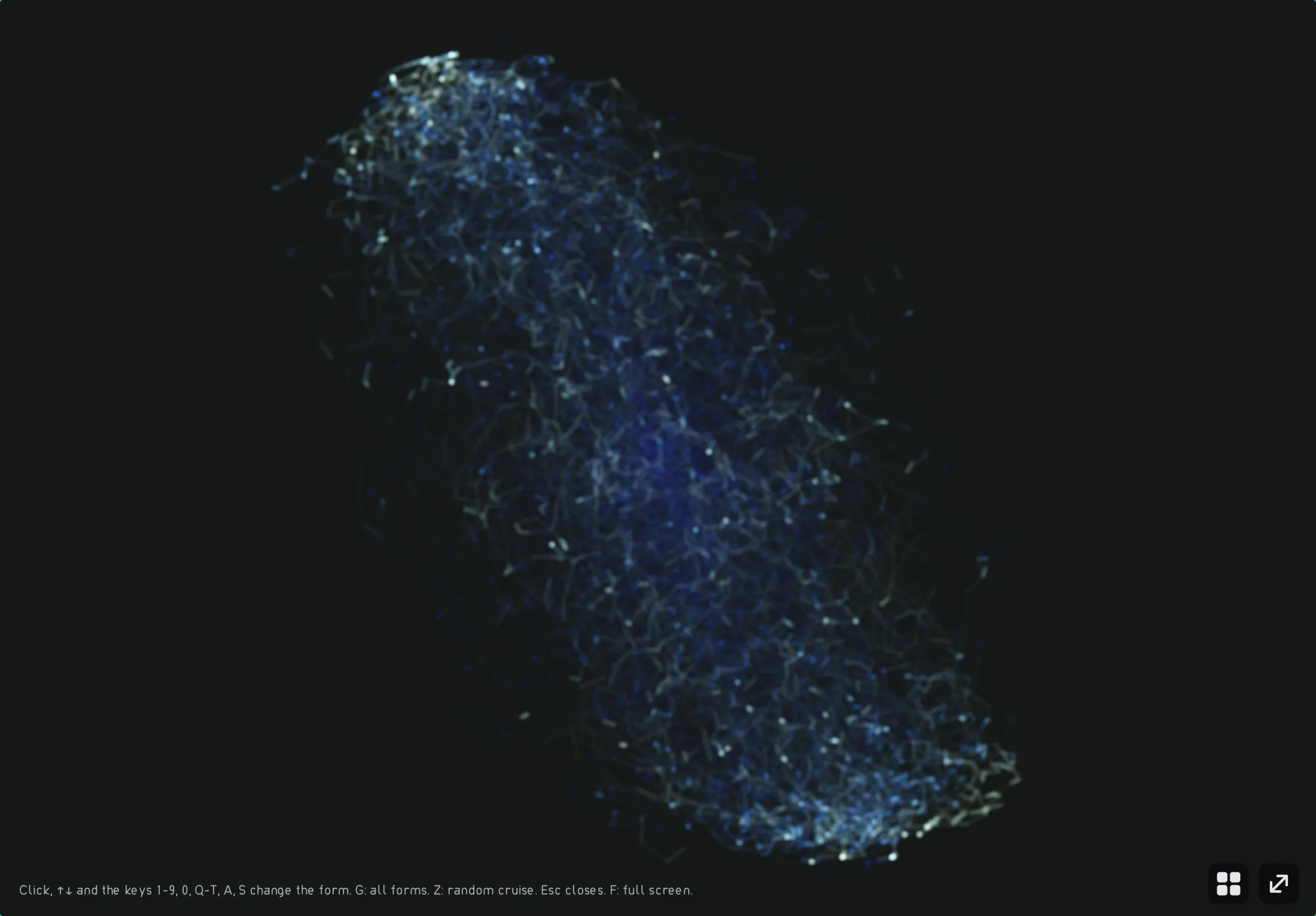
The same shape for the version that is too wide. -
Step 3: Phase error: one channel is reversed in polarity
A classic error: one channel is flipped (polarity reversalOne stereo channel is flipped: it swings against the other. Audible as a missing anchor in the center; in mono, identical parts cancel each other out.), for example because a speaker is wired wrongly. Both channels then swing against each other. On headphones it sounds blurry, without a firm center. If a device mixes both channels to mono, identical parts cancel each other out: above all the bass and everything standing in the center almost disappears.
Audio example
The sound has no anchor in the center, the bass is hard to pin down. You hear that something is off, even if you cannot say what.
In the “Stereo” view the point cloud tips over; the correlation is clearly negative. “Difference” shows how much bass disappears.
Step 3: Phase error: one channel is reversed in polarity
0:00Keyboard: Space plays or pauses, arrow keys jump 5 seconds, Home and End go to start and end.
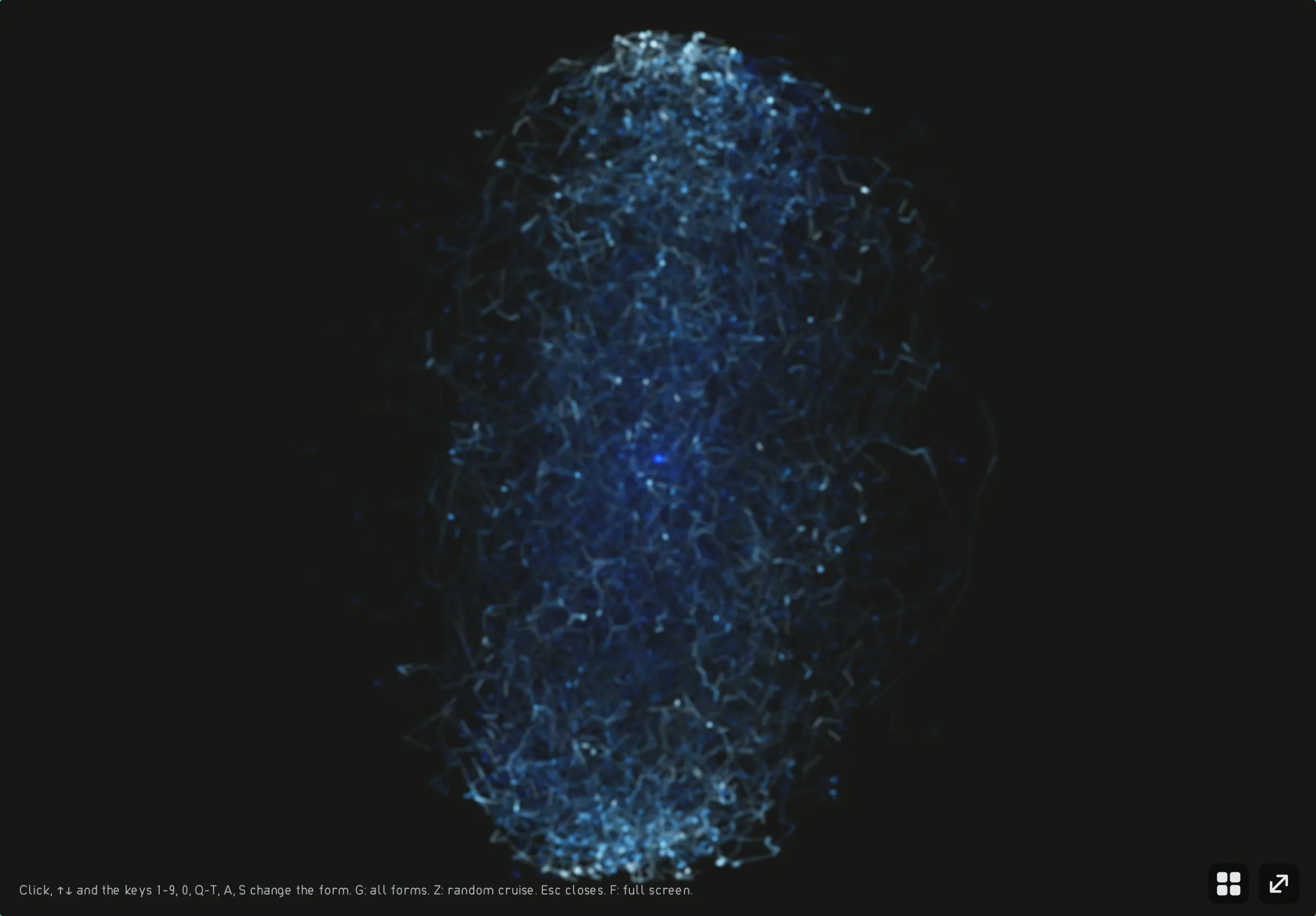
The same shape for the version with inverted polarity. -
Step 4: Crossfeed: less harshness on headphones
On speakers each ear hears both channels, the far one slightly delayed and duller. Headphones separate that; instruments panned hard left and right then sound unnaturally separated. The player’s headphone crossfeedOn headphones, mixes a delayed, duller copy of each channel under the other, as happens by itself with speakers. mixes a delayed, low-pass filtered copy of each channel into the other. You switch it on in the settings under “Output”. The audio example shows a similar effect on the wide piece from step 1.
In the player Settings › Output › Headphone crossfeed an Audio example
The wide piece sounds more closed and more in front of you, the instruments move closer together.
In the “Stereo” view the cloud becomes narrower again, the correlation rises. In the “Spectrum” the bass range grows slightly, because the identical low parts add up in the center.
Step 4: Crossfeed: less harshness on headphones
0:00Keyboard: Space plays or pauses, arrow keys jump 5 seconds, Home and End go to start and end.
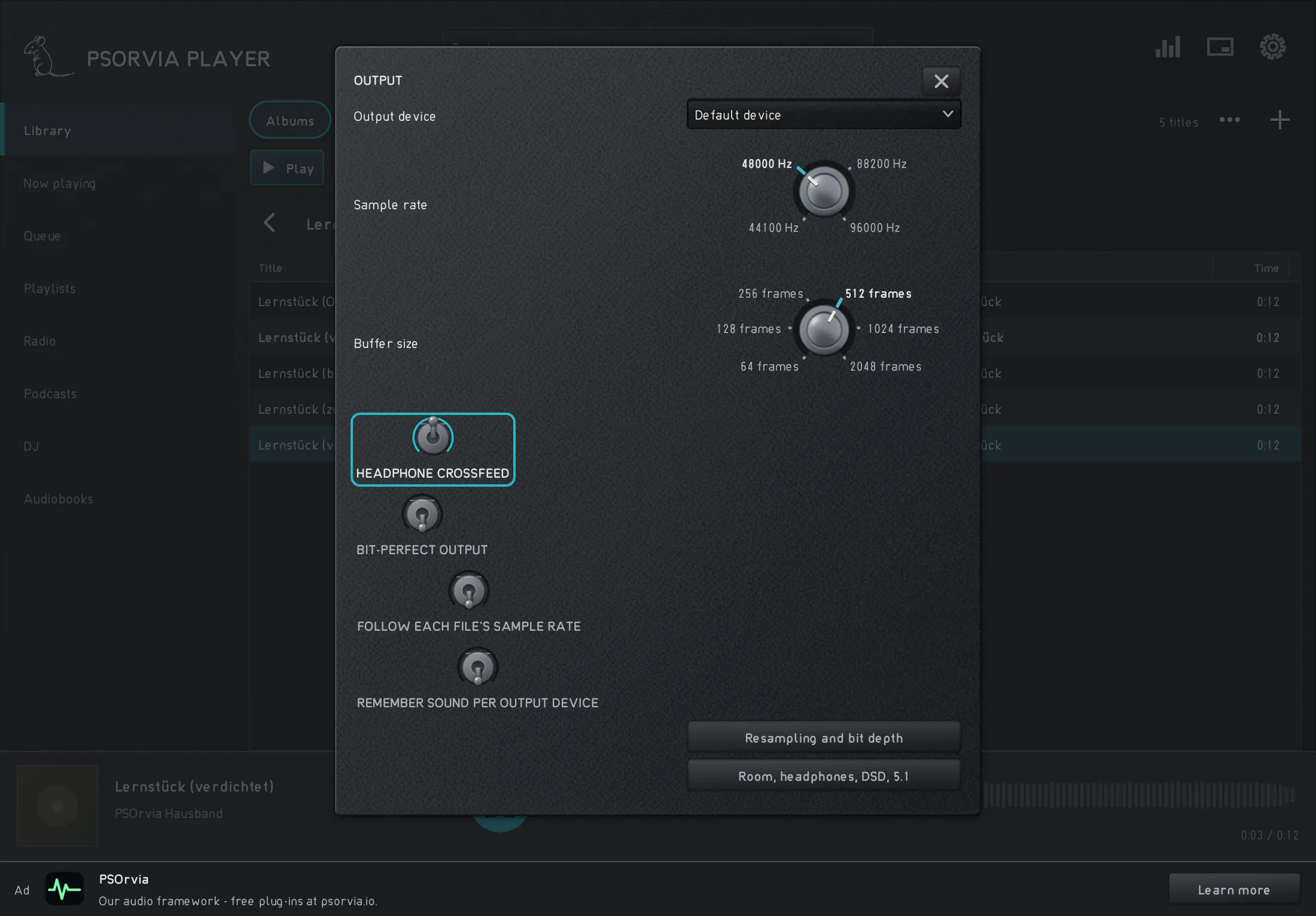
Settings › Output in the player with the switch “Headphone crossfeed”.


Listening quiz
Can you hear which step is behind it? Listen to the three sounds and choose the one that belongs to the named step. Best with headphones. None of this is saved.