PSOrvia Player – Manual
PSOrvia Player is a free music player from Petit Souris. It plays your music library, internet radio, podcasts and audiobooks in one window, gaplessly and without an account. It sends no usage data, and every connection to the network stays off until you switch it on yourself.
This manual is short on purpose. Every control has a hint text (hold the mouse over it) and a name for the screen reader. There are eight pages; you choose them in the bar on the left (at the bottom or in the More menu in narrow windows) or with the keys 1 to 8.
First start
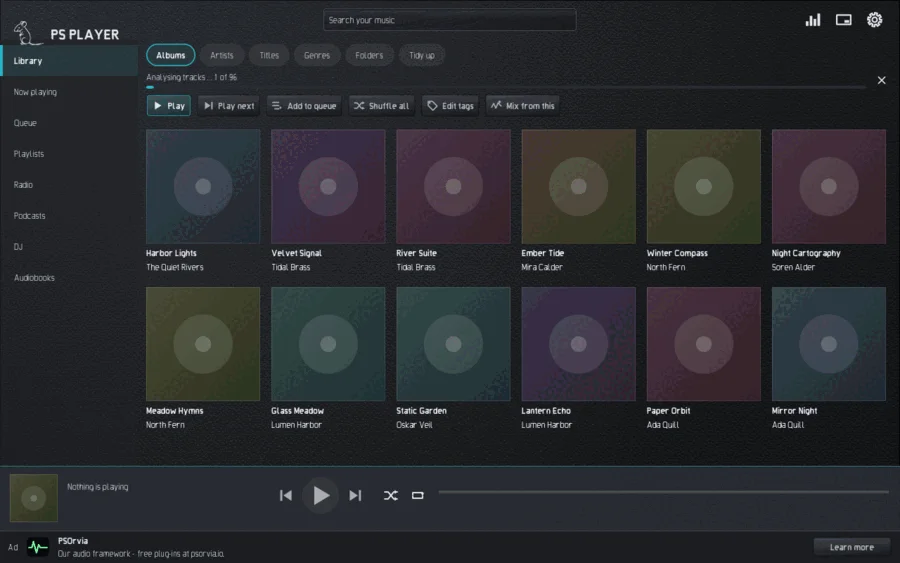
On the first start the library is empty. Choose Add music folder, type the path or pick the folder in the file dialog. Scanning runs in the background: you can search and listen while the line at the top shows the progress; the X stops it. The player only reads and never writes into your music files (unless you edit tags yourself). More folders and scanning again are under Settings, Library.
The player plays WAV, AIFF, FLAC, MP3, Ogg Vorbis, Opus, ALAC and M4A, as well as WavPack, Monkey's Audio, True Audio, CAF, Ogg-FLAC, Musepack, Speex and DSD; in all, more than 40 file types (see the section Formats).
Library
The Library page shows your music as Albums, Artists, Titles, Genres and Folders. Every key you type in the search field at the top asks the library at once; accents and case do not matter, and / or Ctrl+F jumps into the field. The search language also understands terms of the form field:value, for example genre:jazz or rating:>=4. Under an empty search field the player lists your recent searches (the X next to one removes it).
The buttons above the list play the selection (Play), append it to the queue (Add to queue) or play it next (Play next), shuffle everything (Shuffle all), edit tags (Edit tags) or start a Mix from this of similar-sounding titles. A right click (long press on a phone) on a title opens the same menu. CUE sheets are shown as single titles. Under Sources you can choose your own music server (OpenSubsonic) or devices in the network (UPnP) instead of the local files; you switch both on first under Connections.
While the player runs it watches your music folders. When files are added, changed or removed, only the changed folders are read again, a few seconds later; nothing else is scanned.
Network shares
Settings, Library, Add network share reads music from a Samba (smb://server/share), NFS (nfs://server/export), SFTP, FTP or WebDAV address; Add Nextcloud / ownCloud needs only the server, the user and an app password. The desktop's gvfs connects the share in the background at every start, and the password is kept in the key store. While the server sleeps or cannot be reached, its titles stay in the library, greyed out, and are not played; when the server is back they are available again by themselves. Network folders cannot be watched for changes, so every few minutes the player compares the modification times of the files, but only while the share is connected. Without gvfs (packages gvfs-backends, gvfs-smb, gvfs-nfs) the player says so. For a new SFTP server the fingerprint of its key is shown once: compare it, then choose Trust. A share is removed under Settings, Library, Remove a music folder.
Light show
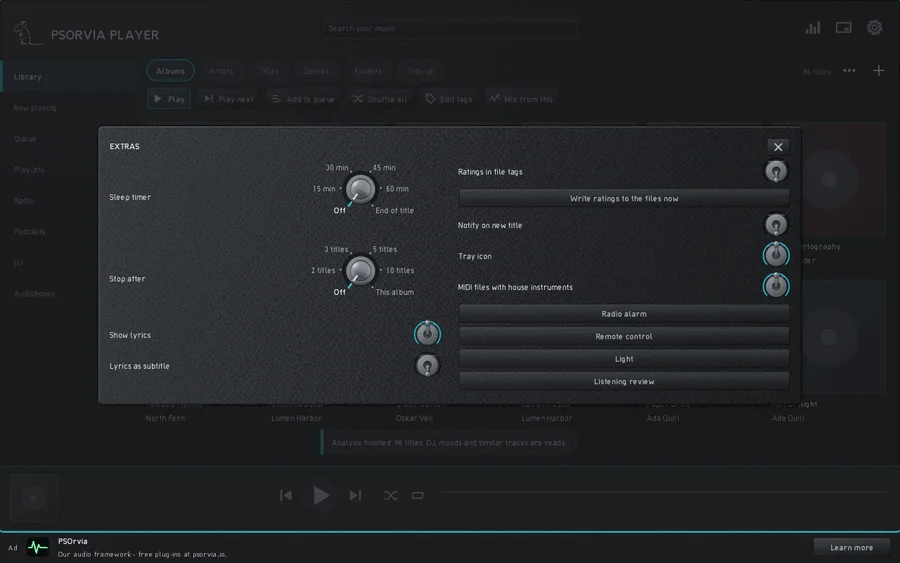
Settings, Extras, Light lets lamps in the room move with the music. Pick Calm (slow swells, never a flash) or Lively (the lamps follow the beat); Off stops everything, and while it is off nothing runs in the background. Find lamps looks for WLED lamps and, when a broker is set under Broker for Zigbee2MQTT and Home Assistant, for the lamps found there; Add a lamp takes an address such as wled://192.168.1.20, sacn://192.168.1.30/1 (stage lights, sACN), artnet://192.168.1.30/0, z2m://Sofa or ha://home/lamp/set. Every lamp starts switched off: open it under Lamps, give it a Place (all, left, right, below) and a brightness, then Use this lamp. The colour is taken from the picture of the visualisation. The light never flashes more than three times a second; Zigbee lamps are driven slowly on purpose. Lamps are controlled over the home network only.
Further addresses: lifx://192.168.1.40, govee://192.168.1.41 and yeelight://192.168.1.42 (switch on LAN control in the lamp's app), and openrgb://127.0.0.1/0/30 (the lighting of this computer, with the OpenRGB server on). Stage lights on sACN or Art-Net have a Fixture choice (RGB, Dimmer + RGB, RGBW, Strobe, Fog machine, Moving head); strobe and fog ask for a warning first, the strobe flashes at most three times a second, and Emergency stop switches everything off at once.
More outputs: ddp://192.168.1.60/32x8 and wled2d://192.168.1.61/16x16 (LED matrices that show the loudness as bars; add /s for zig-zag wiring), pixoo://192.168.1.62 (Divoom Pixoo, added by hand only) and hyperion://192.168.1.63 (Hyperion or HyperHDR receives only the colour of the scene, never a video picture). Launchpad and APC pads and gamepads with a motor are found by "Find lamps"; the pads show the bars, the gamepad vibrates in time with the music (off until you switch it on, with a notice first). "Second screen" shows the visualisation in full screen on another monitor or a beamer; Esc closes it. The flash protection applies to all of them.
Open a file
Open an audio file from the file manager or the command line (psorvia-player song.flac) and the player plays its whole folder. The folder joins your music folders (not when it lies in one already: then nothing is read again, and never for a drive root or your home folder), the library shows its titles in file-name order with the opened file marked, and the queue holds every audio file of the folder, so Next, Previous, the arrow keys, Space and the media keys go through all of them. A folder opened the same way plays from its first title. Several files opened together play just those files.
Tags, ratings, lyrics and booklets
Edit tags also covers Composer, Original year and Sort name; all three can be searched (composer:bach, origyear:1965, sortname:beatles). The title menu (right click, long press on a phone, or More on Now playing) has Rating; Start and end of the title, which cuts off an intro or applause (the file stays untouched, the times are kept in the library and used whenever the title is played from it); Sync lyrics by tapping, where the title plays and you tap each line just as it begins (Line back undoes the last tap, -0.1 s and +0.1 s move it, Save writes the .lrc file and the tag); and Booklet and back cover, which shows pictures such as back.jpg or booklet-01.png and the folders Scans or Booklet of the album folder (PDFs open in your PDF reader). Settings, Extras, Ratings in file tags is off by default: switched on, a rating is written into the tags of the file (ID3 POPM, FMPS_RATING, MP4 rate) and ratings in the tags are read at the next scan; Write ratings to the files now does it for all rated titles after asking. Lyrics as subtitle shows only the line being sung. The sleep timer also stops after 2, 3, 5 or 10 titles or after this album. Long lists of Albums, Artists, Titles and Genres show a letter strip at the right edge; touch a letter to jump there. In the Folders view the heart marks the folder you are in as a favourite; favourites are listed first.
Tidy up
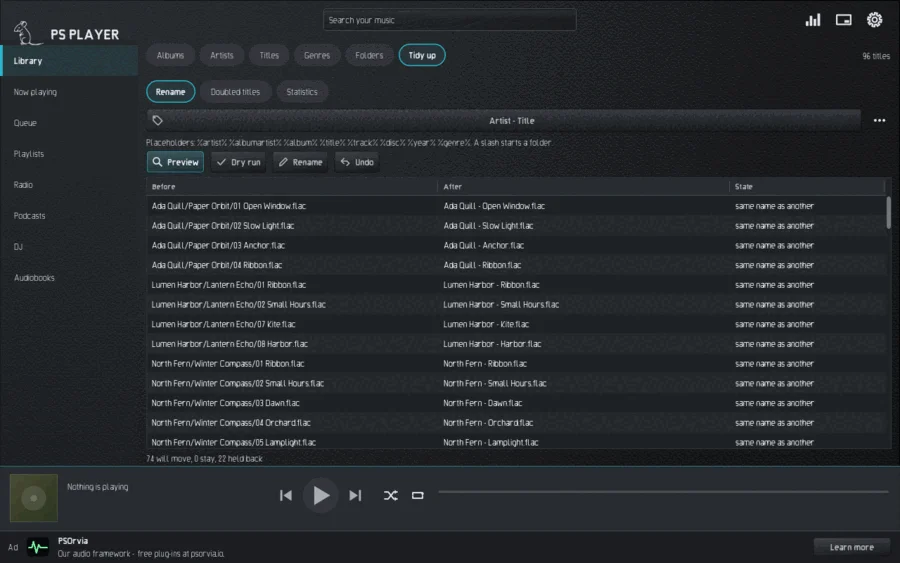
The Tidy up tab has three parts.
- Rename arranges files by their tags. Choose a ready pattern, for example "Artist / Album / 01 Title"; a pattern of your own with placeholders (
%artist%,%album%,%title%,%track:2%…) is under Advanced. Preview shows before, after and state of every file, the Dry run only counts, Rename does it, and Undo takes the last run back. Conflicts (name taken, name not allowed, path too long) are held back, nothing is overwritten. - Doubled titles: Search finds titles with the same artist and title and almost the same length. Mark chooses the surplus copies, To the trash puts them where you can restore them. One copy of every title always stays.
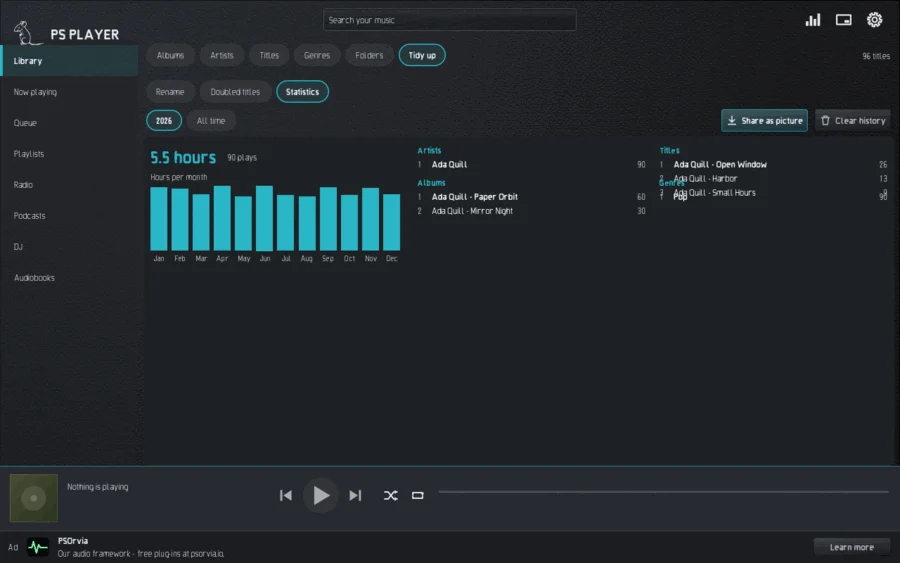
- Statistics is a local listening log. A title counts when at least half of it, and at least 30 seconds, was played. You see the most played artists, titles, albums and genres, the hours per month and your summary Your year; Share as picture saves it as an image, Clear history deletes the log. Everything stays on this computer.
Listening review
Settings, Extras, Listening review opens a folder of listening samples (for example ~/PS-Abnahme/<folder>) for judging; a folder with a LIESMICH.txt or LIESMICH.md is offered for it when you open it. The files are grouped into samples by their names: -vorher/-nachher, -alt/-neu, -before/-after, -0/-1/-2, a sub folder alt/ next to the same name above it, or 0-sauber/1-eingang inside one folder. Each version shows the matching line of the LIESMICH under What to listen for.
Switch between the versions with the keys 1 to 9 (or A, B, C ...) or the switch Version: the sound goes on at the same spot without a gap. Even out loudness (on) measures every version (ITU-R BS.1770) and turns the louder ones down to the quietest, so the louder one does not win only for being louder. Blind hides the names and shuffles the versions as X, Y ...; the names are shown after your verdict, and Sounds better is saved with it. ABX test (two versions) plays eight trials with a hidden X: you say whether X is A or B, and the result with its chance of guessing is saved.
Verdict is Open, Accepted or Not good; Note adds a text. Everything is written to URTEIL.tsv in the folder (tab separated: date, sample, verdict, note, blind result; the last line of a sample counts), for scripts to read. Keys: Space play / pause, Left / Right 5 seconds back / forward, N / P next / previous sample, J accepted (and on to the next open sample), K not good, H what to listen for. The review only plays inside this window; nothing is changed in the files.
Now playing
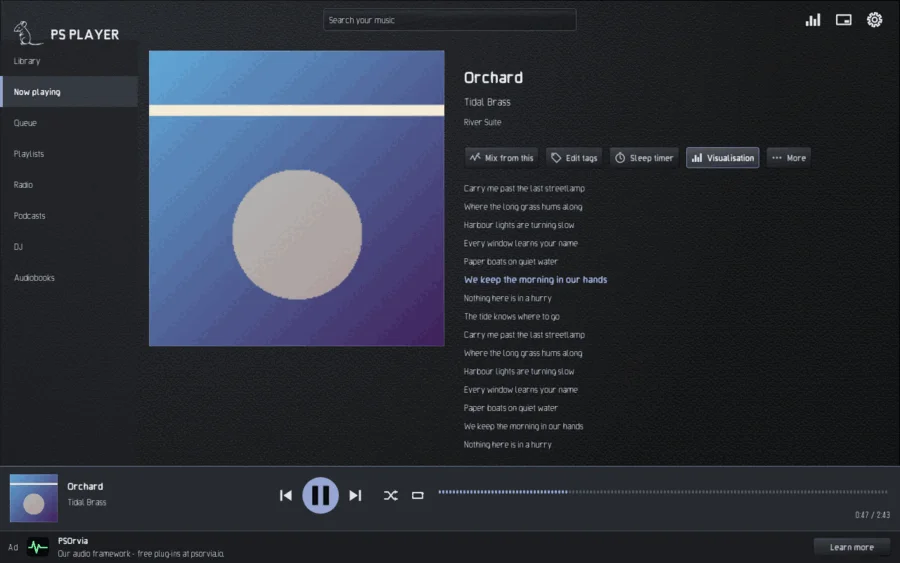
The Now playing page shows cover, title, artist and, if there is one, the lyrics; the line being sung is highlighted when the text has time marks (.lrc). At the bottom there is always the bar with Previous, Play/Pause, Next, Shuffle, Repeat and the position bar; tapping or dragging the bar jumps. On this page you also find Mix from this, Edit tags, Sleep timer, Visualisation and under More a few further actions.
Playback is gapless; under Settings, Sound, you set the crossfade, volume levelling (per track or per album), equalizer and headphone crossfeed, and under Output the bit-perfect output. The Sleep timer (key T) fades out and pauses after the chosen time or at the end of the title.
Queue
The Queue shows what comes next. Remove takes titles out (Undo or Ctrl+Z brings them back), Move up and Move down or Alt+Up and Alt+Down move them, Clear empties everything. The queue survives closing the program; at the next start the player loads it paused.
You can also drag: pull a row inside the queue to move it, or drag titles from the Library onto the window to append them to the queue.
Playlists
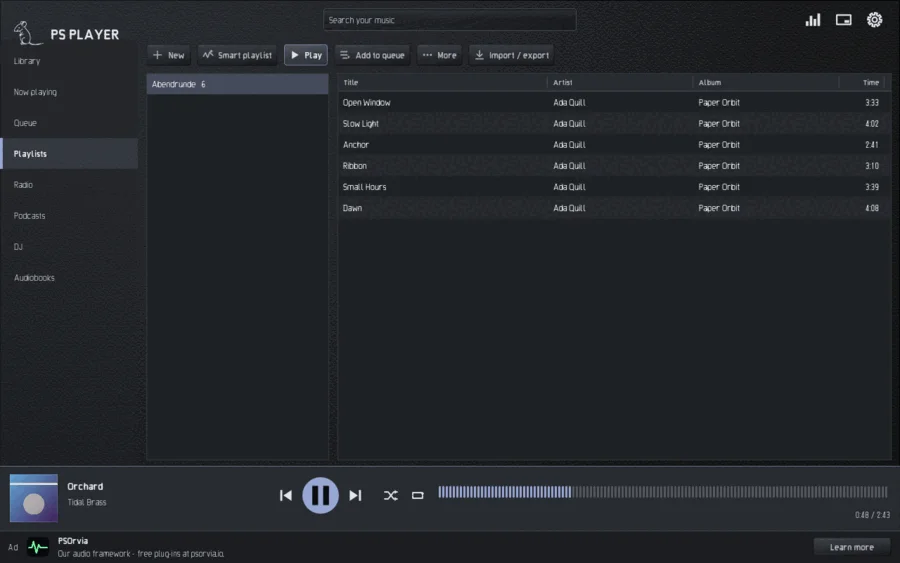
On the Playlists page you create a list with New and fill it with Add to playlist in the title menu. A Smart playlist stores a search, for example genre:jazz rating:>=4, which changes with the library.
Under Import / export the player reads M3U, M3U8, PLS and XSPF as well as lists from other players (iTunes / Apple Music XML, Rhythmbox, Strawberry, Clementine, CSV). For each list you see how many titles are found, unsure or missing, and you take either all of them or only the found ones. Titles are matched by path, then by artist and title; existing ratings stay. Export the playlist … writes M3U, M3U8, PLS or XSPF. Importing sends nothing into the network and changes no file.
Radio
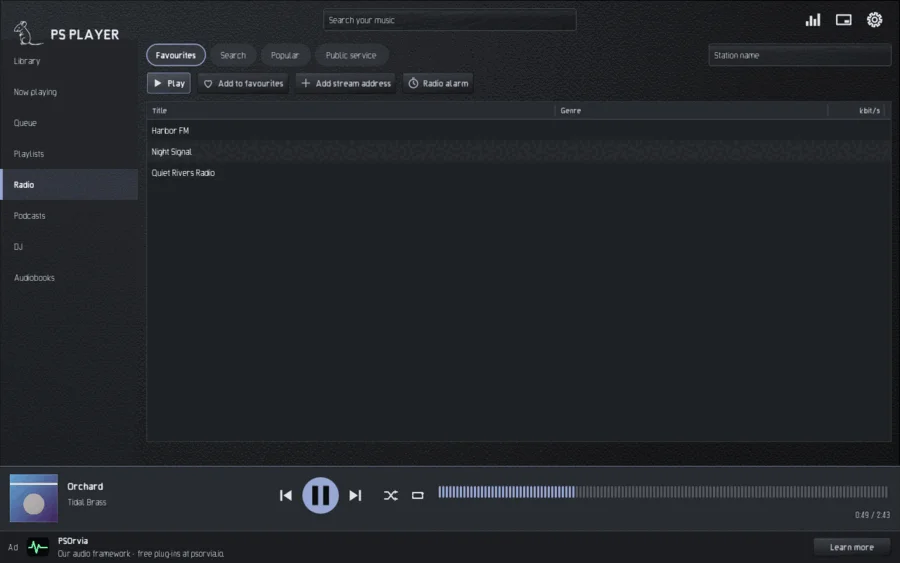
The Radio page has the tabs Favourites, Search, Popular and Public service. The search by station name asks the open directory radio-browser.info, but only when you search. Add to favourites remembers a station; Add stream address takes an http or https address of your own. The player plays MP3, AAC (also HE-AAC), Ogg Opus and Ogg Vorbis streams (AAC needs a system decoder; on Linux the program ffmpeg); for other formats it says "This format is not supported". When the connection drops, it reconnects by itself. The current title appears when the station sends it. Nothing is recorded.
Radio alarm
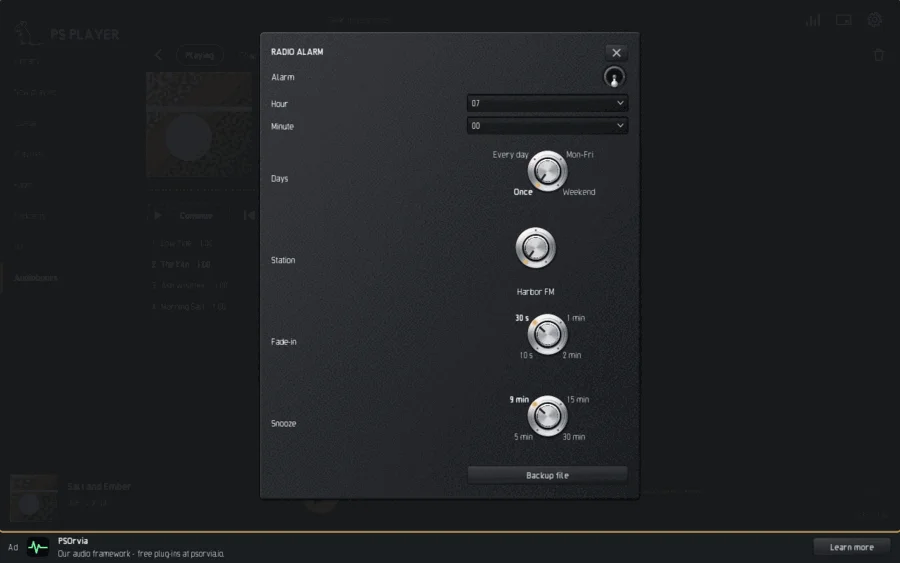
The Radio alarm (button on the radio page or under Settings, Extras) wakes you with a station from your favourites. You set Hour and Minute, the Days (Once, Every day, Mon–Fri, Weekend), the Station, the Fade-in and Snooze. As a Backup file the player plays a title when the station cannot be reached. A missed alarm still rings for ten minutes after its time.
Public service
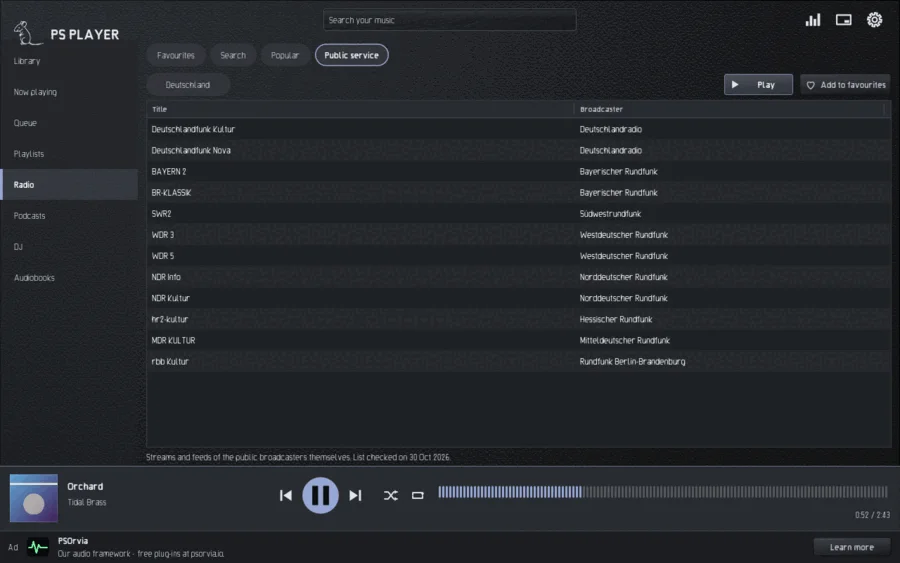
The Public service tab (also with the podcasts) is a calm overview of public-service stations and programmes: choose a Country and a Type (Podcasts, Radio plays, Radio features). The list is part of the program, opening it sends nothing. Only Play, Add to favourites or Subscribe asks the station or the broadcaster's official feed. The broadcasters are named in the language of their country; under the list you see when it was last checked.
Podcasts
The Podcasts page has the tabs My podcasts, Discover, Transcript and Public service.
- My podcasts: Add podcast takes a feed address, Import OPML loads a list of subscriptions. Each episode has Play, Download (resumable) and Mark as heard; Refresh fetches new episodes, Unsubscribe removes the subscription. The speed runs from 0.5 to 3 times at the same pitch; Skip silence shortens long pauses. The toggle Clearer speech lifts the speech band and gently evens out quiet passages, without pumping and without delay; it is off by default, applies per podcast (and per book for audiobooks), and under Settings > Sound you can switch it on for all podcasts and books at once. It takes effect immediately, even in the middle of an episode. Chapters appear when the file or the feed offers them. The player remembers position and "heard" for every episode.
- Discover: search and lists in the open podcast directories (Podcast Index and fyyd), only when you have switched them on under Connections; with category and Subscribe.
- Transcript shows the text of the chosen episode when the feed offers one. Search in the transcript, Next hit, Copy text; tapping a line jumps to its time, Follow keeps the text in step.
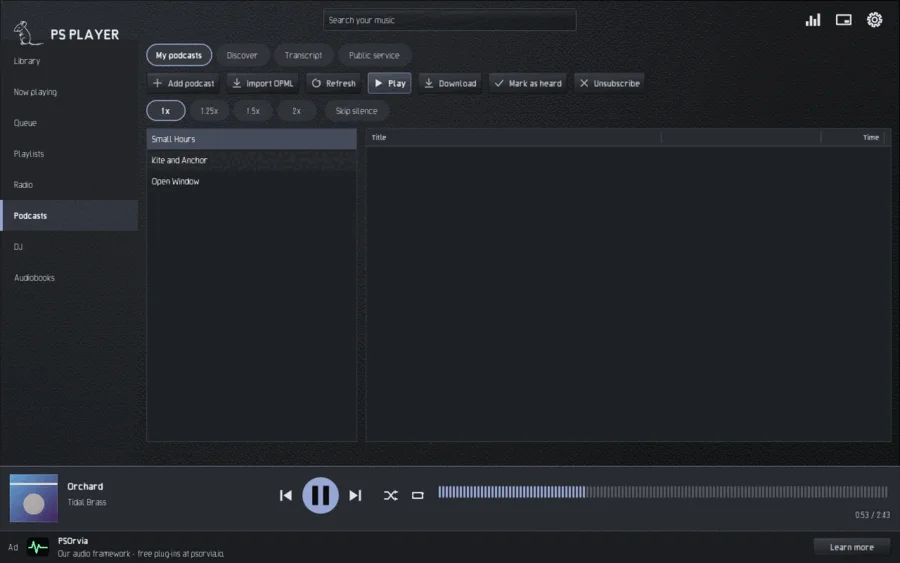
Clearer speech lifts the speech band and evens out quiet passages without pumping. It is off by default; you switch it on for each podcast (next to Skip silence), for each audiobook, or for all of them under Settings, Sound, and it takes effect at once, even on the episode that is playing.
DJ
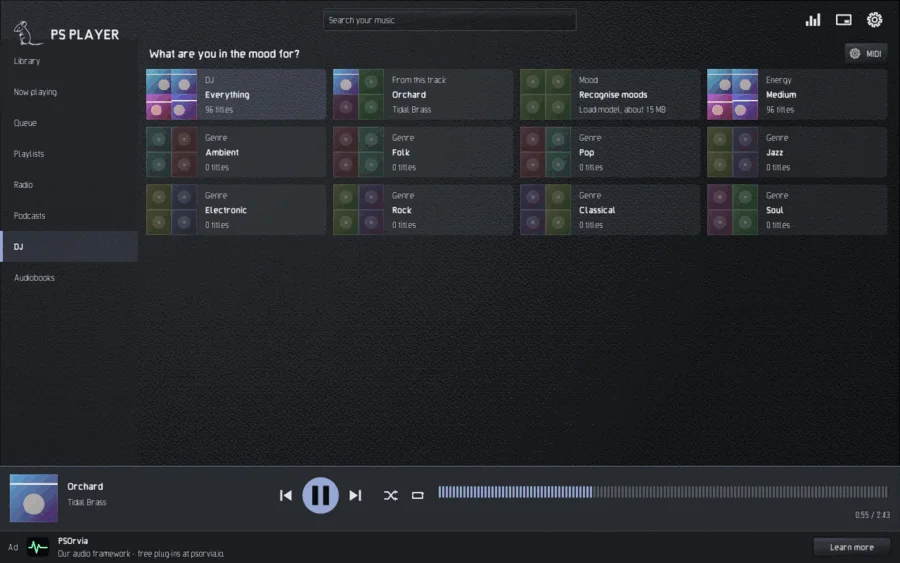
The DJ page answers "What are you in the mood for?" with fixed tiles: Everything, From this track, Mood (happy, sad, tender, exciting, angry), Energy (calm, medium, high) and your Genres. One tap starts an endless mix; the player measures tempo, beat and key while scanning (in the background, at low priority) and blends on the beats. A title without a beat grid goes on without blending.
While the DJ runs you see Playing and Up next with the time to the transition. Next jumps to the suggestion, Reject swaps it, End DJ stops. You set Choice (calm, balanced, adventurous) and Blend (bars) with rotary switches; switch DJ transitions off if you prefer the crossfade of the settings. In the library the key D or the title menu starts the DJ from a title. Analysis in the title menu shows tempo, key, mood, genre and energy of the title; you correct mistakes by hand. Mood recognition needs a small model (about 15 MB) that is only loaded from psorvia.io after you click Download; nothing about you or your music is sent. With a MIDI controller you can remote-control the DJ (button MIDI on the page).
Audiobooks
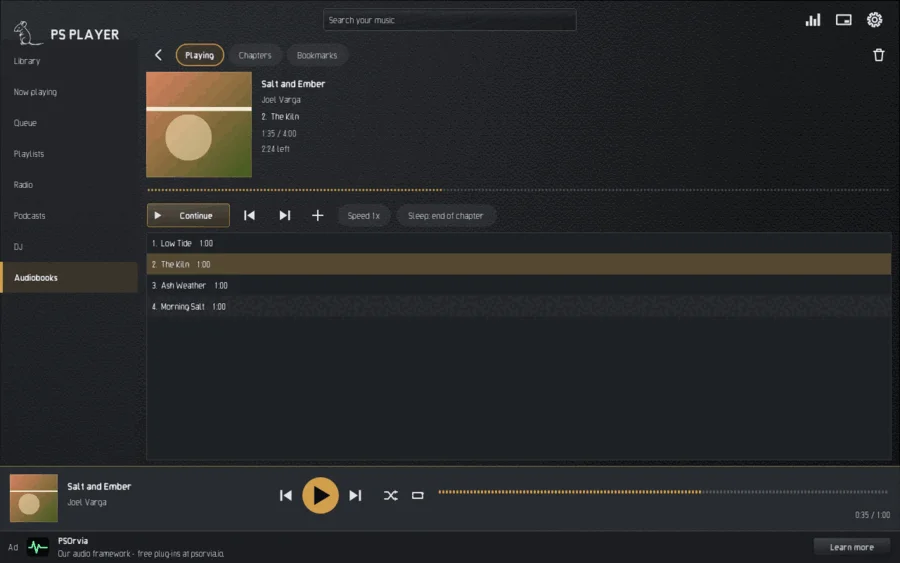
The Audiobooks page has the Shelf and Online. With Add you choose a folder with chapters or an M4B file. The big Continue button starts the book you listened to last. A book has Playing, Chapters and Bookmarks (with a note), a speed from 0.5 to 3 times, and Sleep: end of chapter. The position counts for the whole book, however many files it is split into.
Online you find free books read by volunteers at LibriVox (downloading can be resumed) and sign in to your own Audiobookshelf server. Only what you type is sent, and only when you search or download; the password is never stored, only a sign-in token in the system keyring.
Visualisations
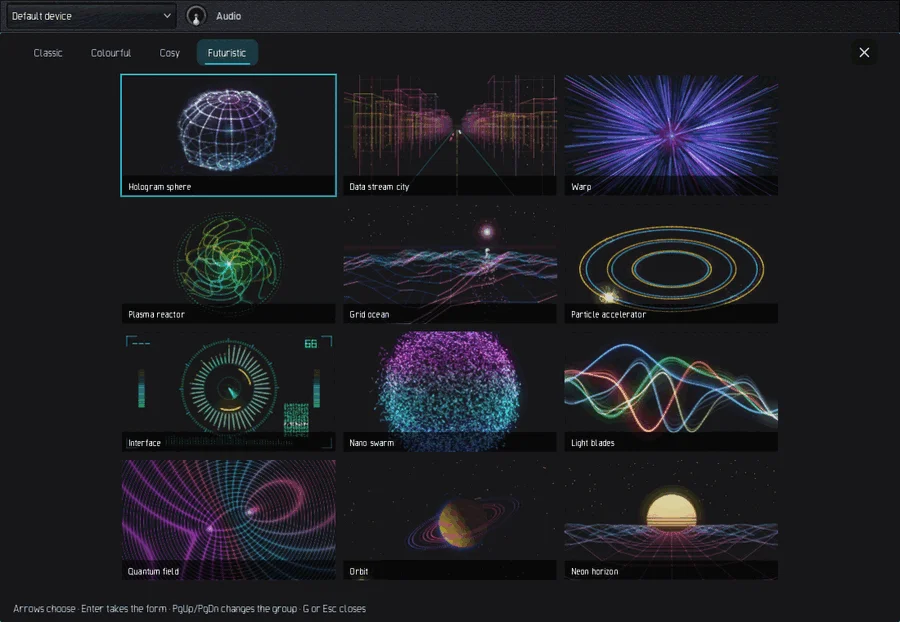
The Visualisation button on "Now playing" (or the key V) shows moving pictures to the music: 56 forms in six groups, Classic, Colourful, Cosy (fireplace, Jellyfish …), Futuristic, Nature and Patterns (the last two need a graphics card and are hidden without one). The key G opens the form picker with live tiles and a tab for each group; arrows choose, Enter takes the form, PgUp/PgDn change the group, G or Esc closes. ↑ and ↓ step through the forms, the keys 1 to 9, 0, Q W E R T A S choose the first 17 directly, Z starts the random cruise, which changes at phrase boundaries. F or a double click goes to full screen (the screen stays awake); Esc leaves full screen first, then the visualisation. Under Settings, Visualiser, you set Colours (Vivid, Cover, Calm), Motion strength and Frame rate (Frugal, Automatic, Always 60). The pictures never flash and stay calm.
Themes
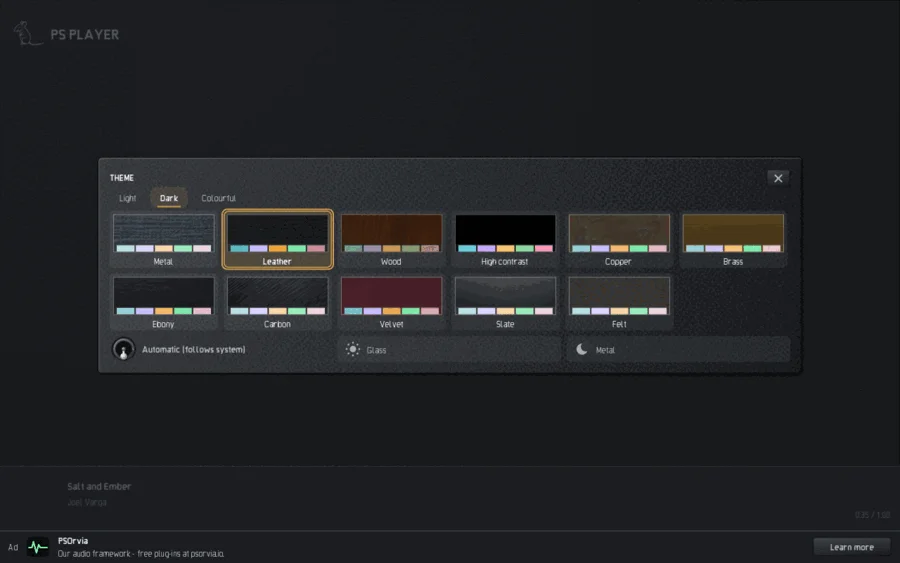
Under Settings, Appearance, Theme opens the gallery with 30 themes in the tabs Light, Dark and Colourful. Most are named after a material (Metal, Leather, Wood, Copper, Marble, Jade …), and there is High contrast. A click switches at once. Automatic (follows the system) follows light/dark of the system with a pair that you choose. Accent from cover colours the play button, progress, selection and focus frame after the cover (always readable), Cover as background puts the softly blurred cover behind "Now playing". The text size has three steps (Normal, Large, Largest); the window adapts.
Connections
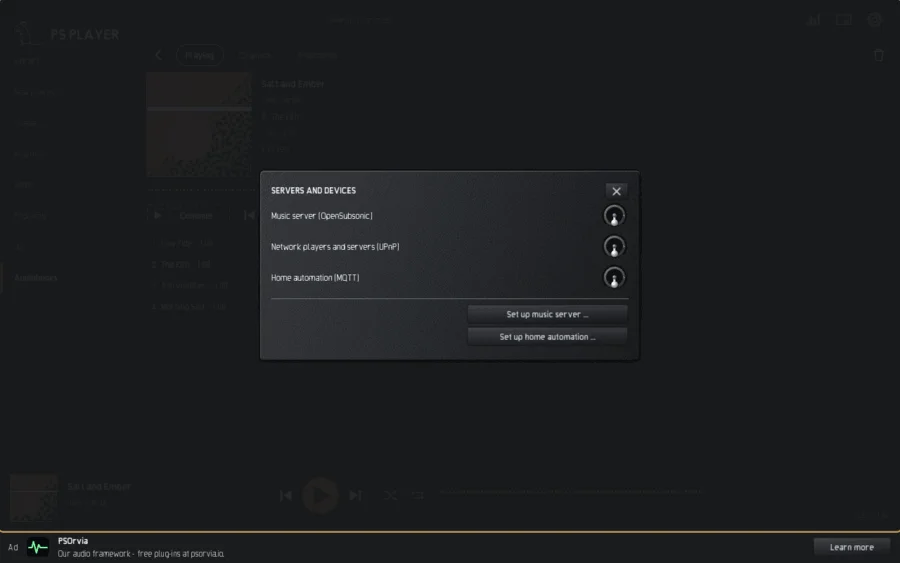
To start with, every connection to the network is off. Under Settings, Connections, you switch a service on only after you have read its privacy text; without your click nothing goes out. There are:
| Service | What for | What goes where |
|---|---|---|
| MusicBrainz and Cover Art Archive | tag suggestion and fetching covers | artist, title, album, length of the chosen title and your IP address, only after a click; no sound, no fingerprint |
| LRCLIB | fetch lyrics (.lrc next to the file) | artist, title, album, length, IP, only after a click; an existing file is never replaced without your consent |
| Wikipedia and Wikidata | About the artist | artist name, interface language, IP, only after a click; texts under CC BY-SA 4.0 with the source |
| Music server (OpenSubsonic) | your own server, for example Navidrome | user name and a one-time token (never the password), searches and played titles, only to your address |
| Cast speakers and displays | Play on … on devices with Cast (sender, not a receiver) | only on the local network; the device fetches the title from this computer; nothing goes to the internet |
| UPnP / DLNA | find network players and servers, Play on … (Sonos speakers appear with the addition "Sonos") | only in the local network; nothing leaves it |
| gpodder | synchronise podcasts | user name and password (https), subscription list, heard episodes with position, when you click Refresh |
| Podcast directory (Podcast Index, fyyd) | Discover | search term and IP, only while searching |
| Home automation (MQTT) | send status, receive commands (for example Home Assistant) | playback status to your broker; unencrypted without TLS |
In addition there are LibriVox and Audiobookshelf (Audiobooks page) and the radio directory radio-browser.info (only when searching). Passwords are kept in the system keyring, not in the settings. There is no account, no telemetry and no advertising network. From the server psorvia.io the player fetches only the announcement strip and the update check, and only when Load online content or Check for updates are on.
Jellyfin and Plex (Settings, Connections, Media servers) bring the music library of your own server into the player. Switch the service on, read the privacy text and fill in the address: with Jellyfin you enter your user name and password once at login - only the access token the server returns is kept (in the system keyring), the password is not; with Plex you enter the access token of your server (X-Plex-Token) - the player uses only the documented interface of your own server, no Plex account login and no plex.tv, and the Plex terms of use apply to your use. A plain http:// address is accepted for Jellyfin only inside your home network; otherwise use https://. In the library, the Sources chip then shows a chip for each switched-on server: albums, then songs of an album; Search the server looks through the whole library. FLAC, Ogg Vorbis and MP3 stream from the server and can be sought; every other format the player knows (WAV, AIFF, M4A, ALAC, Opus ...) is downloaded first and then played, and only a format the player cannot read at all goes through the server's transcoding (MP3) as the fallback; the album cover comes from the server and shows under "Now playing"; while a title plays the server is told the position (started, progress every ten seconds, paused, stopped) so that it can show and remember it - Plex also marks a title played that you heard to the end. Other formats are not played from these servers yet.
Playing on speakers (Cast, Sonos). In the title menu Play on … opens a list of the devices on your local network: UPnP/DLNA players (Sonos speakers show with the addition "Sonos") and devices with Cast. Both are off until you switch them on in Settings, Connections (Network players and servers (UPnP), Cast speakers and displays). The search runs only when you press the button and only on your own network; a title always starts from the beginning on the device, a running playback is never handed over. The player only controls a device: play, pause, seek, volume. It forms no device groups, no stereo pairs and no guest playlists, and of Sonos only the local UPnP control is used, no Sonos cloud. Device groups you make in the maker's own app stay a matter of the devices. For playing in step on several computers (multiroom) the building block is in the PSOrvia framework (a fixed main computer that you choose, clock matching only while playing, fine tuning of the remaining offset by hand); it is not yet switched on in the player's interface.
Find missing covers (Connections, tags and lyrics) goes through the albums without a cover and shows each cover it finds; it saves one next to the album only when you click, and never replaces an existing cover.
Share listening history (Connections) sends every title you have really heard (artist, title, album, start time) to the scrobbling service you choose. It stays off until you have set up the access (service, token or API key and secret, kept in the system keyring); nothing else leaves your computer. Switching it off deletes the waiting list.
Continue listening on another device
Under Settings, Library, Continue listening, you enter the address of a WebDAV folder of your own (https), user name and password. Then every device writes its state there: title, position, queue, radio or podcast episode. On the other device the player asks Continue listening? at the start and shows what was playing at which place on which device; it reports missing titles. In addition it synchronises subscriptions, listening positions, ratings, playlists and audiobooks, where the newest state wins for each entry. The password is in the keyring; there is no server of ours in between.
Mini player
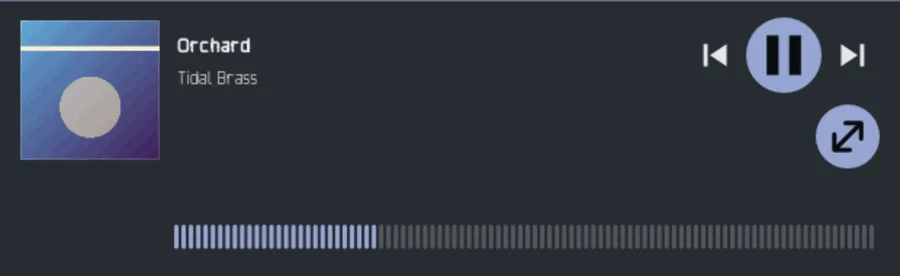
The key M or the button at the top right shrinks the window to cover, title, controls and position bar. Esc or the same button brings the big window back. You can also operate the player with the media keys and the media controls of the desktop; the details for each system are in the chapter Desktop systems. A notification on every new title is switched on in the settings.
Keyboard shortcuts
The list is generated from the program code (tools/tasten-liste.py).
<!-- tasten:begin -->
| Key | Effect |
|---|---|
Space | Play or pause |
Left / Right | 10 seconds back / forward |
Ctrl+Left / Ctrl+Right | Previous / next title |
N | Next title |
P | Previous title |
M | Mini player on or off |
T | Open the sleep timer |
V | Open or close the visualisation |
S | Shuffle on or off |
R | Repeat: off, all, title |
/ | Jump to the search field |
Ctrl+F | Jump to the search field |
1 to 8 | Choose a page: Library, Now playing, Queue, Playlists, Radio, Podcasts, DJ, Audiobooks |
Ctrl+, | Open the settings |
Esc | Leave the mini player; in the visualiser first leave full screen, then close it |
Alt+Up / Alt+Down | In the queue, move the chosen title |
Ctrl+Z | In the queue: undo the last removal |
D | On a title: DJ from this title |
Arrow keys, Enter | In tile grids: choose and open |
Left / Right (focus on the position bar) | 5 seconds back / forward |
G | Show all forms as tiles (form picker) |
F | Full screen on or off |
1 to 9, 0 | Choose form 1 to 10 |
Q W E R T A S | Choose form 11 to 17 |
Z | Random cruise through the forms on or off |
Down or Enter | Next form |
Up | Previous form |
PgUp / PgDn (form picker) | Change group: Classic, Colourful, Cosy, Futuristic |
Home / End (form picker) | First / last form |
PgUp / PgDn (theme gallery) | Change group: Light, Dark, Colourful |
Up / Down / PgUp / PgDn (transcript) | Scroll the transcript |
<!-- tasten:end -->
Touch operation
Every function can also be reached without keyboard and mouse. A tap replaces the click, a long press (half a second) the right-click menu, dragging scrolls lists and grids. On "Now playing" a swipe to the left or right changes the title, in the full-screen visualisation a swipe up or down changes the form. Jumping within a title goes through the position bar (tap or drag). Under 480 dp width or 340 dp height the window switches to the phone layout: touch areas are at least 48 dp, the side bar becomes a bar at the bottom or at the side, and the other pages are in the More menu.
Sound, output and remote control for enthusiasts
Settings > Output. Resampler quality: Hermite and Lagrange are light, Sinc 70, 100 and 130 rise in stop-band attenuation, "Master" lets nothing fold back between the two rates (default: Sinc 130; applies from the next title). Output word length: "Float" leaves the signal untouched, 16, 20 or 24 bit round with dither (TPDF, optionally with first or second order noise shaping). Follow each file's sample rate sets the device to the rate of every title, also without bit-perfect, where the system allows it. Remember sound per output device: EQ preset, headphone crossfeed and word length are set again automatically when you change the output device (header, Audio); a device without stored values keeps the present ones.
Dynamics value. In the menu of a title (right click or "More") Dynamics value … shows the dynamics value (by the published 3 second block method, the "DR method") and the loudness range of the title and, for albums with several titles, the album's value. It is measured only when you ask, on this computer; the result is kept in dynamics.sqlite next to the library until the file changes.
Remote control. Settings > Extras > Remote control: Off, This computer (default) or Home network. The program psoplayer-ctl controls the running player from the command line: psoplayer-ctl play | pause | toggle | stop | next | previous | status | queue, psoplayer-ctl volume 60, psoplayer-ctl seek 90, psoplayer-ctl shuffle on, psoplayer-ctl repeat all, psoplayer-ctl add song.flac, psoplayer-ctl open song.flac. In the home network the player also offers a small web page (previous, play/pause, next, volume) at the address that "Show how to connect" names; the address contains an access code, and "New access code" makes the old address useless. The player is never reachable from the internet; the home network accepts private addresses only, and from there only files inside your library folders can be queued.
Room and headphone correction, filter lists, DSD, 5.1 / 7.1. Settings > Output > Room, headphones, DSD, 5.1. Load impulse response … takes an audio file with the measured response of your room or headphones (up to 20 seconds, mono or stereo; other sample rates are converted); Apply impulse response switches it on and off. The player only convolves what you give it, with no delay; it measures nothing and calculates no correction curve. Import filter list (AutoEQ) … reads a file you downloaded yourself (ParametricEQ.txt of AutoEQ or a list in the style of Equalizer APO: Preamp: and Filter n: ON PK|LSC|HSC Fc … Hz Gain … dB Q …, or a GraphicEQ: line, which is reduced to the ten graphic bands) and turns the equaliser on; the player ships no profile data. DSD as DoP sends DSF and DFF files bit-exactly as DoP to a converter that takes it; this needs Bit-perfect (exclusive output) and a device rate of 176.4 kHz or more; if either is missing, DSD plays as PCM at 176.4 kHz (compressed DST files are not read). Files with 3 to 8 channels (5.1, 7.1) go to their own outputs where the output has them (a sound card, HDMI or USB device that offers 6 or 8 channels; on Windows set up 5.1 or 7.1 in the sound settings, or use exclusive output); the player asks the device and opens only as many outputs as it has. Only on an output with fewer channels, and with 5.1 / 7.1 on separate outputs off, are they folded down to stereo by the usual weights. Crossfade, DJ transitions, EQ and the volume work on all outputs (the DJ bass swap acts on the front pair, the other outputs are blended with equal power); the convolution and the headphone crossfeed act on the front pair only.
Updates and crash reports
This chapter applies to the desktop versions (Linux, Windows, macOS). The Android app has neither an update check nor crash reports.
The player checks at most once a day whether a new version is available (one plain HTTPS request without an identifier; the catalogue is signed and verified before anything is shown). Switch it off under Settings > Online ("Check for updates"). Crash reports are on; switch them off under Audio > Crash reports. A report is written on this computer only and leaves it only when you send it yourself by mail.
Desktop systems
The pages, settings and keys are the same on Linux, Windows and macOS. What differs is the connection to the system.
Linux
Media keys and the media controls of the desktop work through MPRIS. The tray icon (Settings, Tray icon; a StatusNotifier host is needed, without one there is no icon) offers Play/Pause, Next, Previous and Show window. psorvia-player song.flac plays a file, and a second start hands its files to the running player. AAC, E-AC-3 and WMA need the program ffmpeg; network shares need gvfs.
Windows
Media keys, the volume flyout and the lock screen are served by the Windows media overlay, with a position bar. The tray icon has a menu, a notification can announce each new title, and music folders are watched for changes. The installer works per user and enters the player in "Open with" and the default apps for the audio file types; a second start hands its files to the running player. AAC, E-AC-3 and WMA are decoded by Windows Media Foundation. The installer is not code-signed yet, so Windows SmartScreen may warn: click "More info", then "Run anyway".
macOS
Control Center and the lock screen show the title with position and length and take Play, Pause, Next, Previous and Seek; the media keys work as well. "Open with" and double click work for audio files and M3U / PLS lists; a second file goes to the running window, there is only one instance. Music folders are watched by the system, and the window follows light or dark mode. There is no icon in the menu bar: the Tray icon setting has no effect on macOS.
Android
This chapter is a framework and is completed with the final Android version. The app has the same pages as the desktop and is operated by touch (see Touch operation). The setting Keep playing after closing (off by default) decides whether playback continues when the app is swiped away from the recent apps. The Android app has no update check and no crash report.
Formats
The library recognises more than 40 file endings; the table groups them.
| Kind | Formats |
|---|---|
| Music | WAV, AIFF, FLAC, MP3, Ogg Vorbis, Opus, ALAC, M4A, WavPack, Monkey's Audio (APE), TTA, CAF, Ogg-FLAC, Matroska/WebM, AU, AC-3 (.ac3, own decoder, up to 5.1 with the bass channel as a channel of its own), Musepack (.mpc), Speex (.spx), AMR (.amr, .awb), Shorten (.shn), DSD (.dsf, .dff), the sound track of video files (.mp4, .mkv, .mov, .m4v, .webm: the first audio track, the picture is not shown) (AAC, E-AC-3 and WMA through the system: Windows Media Foundation on Windows, ffmpeg on Linux if installed; DTS is not decoded but passed through to a receiver over S/PDIF or HDMI (bit-perfect output) when the device reports it, otherwise it is shown as "format not supported"); not played: WavPack hybrid (lossy) files, Monkey's Audio before version 3.98, CAF with other codecs than PCM and Apple Lossless, compressed DST |
| Tags and cover | ID3 (v1, v2.3, v2.4), Vorbis comments, FLAC picture, Opus tags, MP4; folder pictures (cover, folder, front …) |
| Track sheets | CUE (one title per entry) |
| Audiobooks | M4B (chapters), folders of MP3 or other files, MP3 with chapter marks |
| Playlists | M3U, M3U8, PLS, XSPF (read and write); iTunes / Apple Music XML, Rhythmbox, Strawberry, Clementine, CSV (read) |
| Podcasts | RSS feeds, OPML (read and write), chapters (ID3 and Podcasting 2.0), transcripts |
| Radio | MP3, AAC / HE-AAC, Ogg Opus and Ogg Vorbis streams (http, https; playlists PLS, M3U, ASX; AAC needs a system decoder) |
| Lyrics | .lrc (with time marks) and text in the tag |
| MIDI | .mid, .midi, .kar: the player plays the notes itself, one to one, nothing is added. When the house instruments (the PSOrvia CLAP plug-ins) are installed, every channel sounds through the matching instrument and factory sound (piano, organ, guitar, bass, strings, brass, woodwinds, choir, synthesizers, drums on channel 10); without them, or if a plug-in fails, the small built-in voices play instead (Settings > Extras > MIDI files with house instruments switches the house instruments off). The length includes a 2.5 second tail. |
| Tracker modules | .mod, .xm, .s3m, .it: the player plays the module as a song (effects, volume and panning envelopes, interpolation). The library shows the module title and, as album, the name of the tracker. |
Security and data
The player has no account and sends no usage data. Network connections (radio, podcasts, music servers, tags, lyrics, update notice) are off until you switch them on under Settings; the update check only shows a notice with a link, nothing is downloaded or installed. The remote control listens on this computer only by default. The player reads server answers and files from unknown sources defensively, but still open only music, lists and servers you trust.
Where things are. Settings (player.settings), library (player.sqlite), caches and backups live in the program's user folder (Linux ~/.config, macOS ~/Library, Windows %APPDATA%, in the Petit Souris folder); passwords and access tokens are in the system key store, never in these files. Removing your data: uninstall the player and delete that folder.
Updates. New versions are on psorvia.io; security fixes are free until the end of the support period shown on the product page. We send the bill of materials (SBOM) of a version on request to appspetit-souris.de. Found a vulnerability? Write to appspetit-souris.de, subject [Security] PSOrvia-Player.
Questions
My music does not appear. Check under Settings, Library, that the folder is entered and the drive is connected, and scan the library again. Folders starting with a dot are skipped.
A station does not play. The player plays MP3, AAC, Ogg Opus and Ogg Vorbis streams; stations that offer only HLS cannot be played. If it says "No connection", the station cannot be reached right now; another station or trying again later helps.
Why are Discover, lyrics or tag search greyed out? The service is still off. Switch it on under Settings, Connections, after reading its privacy text.
The DJ does not blend. The titles need a beat grid; it is made in the background while scanning ("Analysing titles …"). Titles without a grid play without blending.
Where is my data? Library, settings and listening log are on this computer; passwords in the system keyring. Backups of tag changes are in the data folder.
Which language does the player speak? 29 languages; the system language is used, otherwise you choose under Settings, Language. The change takes effect at once.
Who is behind it? Petit Souris, appspetit-souris.de. Settings, About, shows the version and the licences of the parts used. The strip at the bottom announces other free programs; it does not track you.
Built on PSOrvia → psorvia.io